
How do I edit a video with Seedance 2.5?
Upload your source clip, describe the exact change, and state what must remain unchanged. Generate the revision, check the edited region and its surrounding frames, then refine the instruction if needed.
Use Seedance 2.5 to edit video with a simple instruction. Upload an existing clip, replace a character, revise one region, adjust the setting, or iterate on a previous result while keeping the parts you want.
Generate synchronized audio with the video
Preview video - Generate your own video above
See how clear preservation and replacement instructions can keep a subject and moving train coherent while the surrounding landscape changes across one continuous shot.
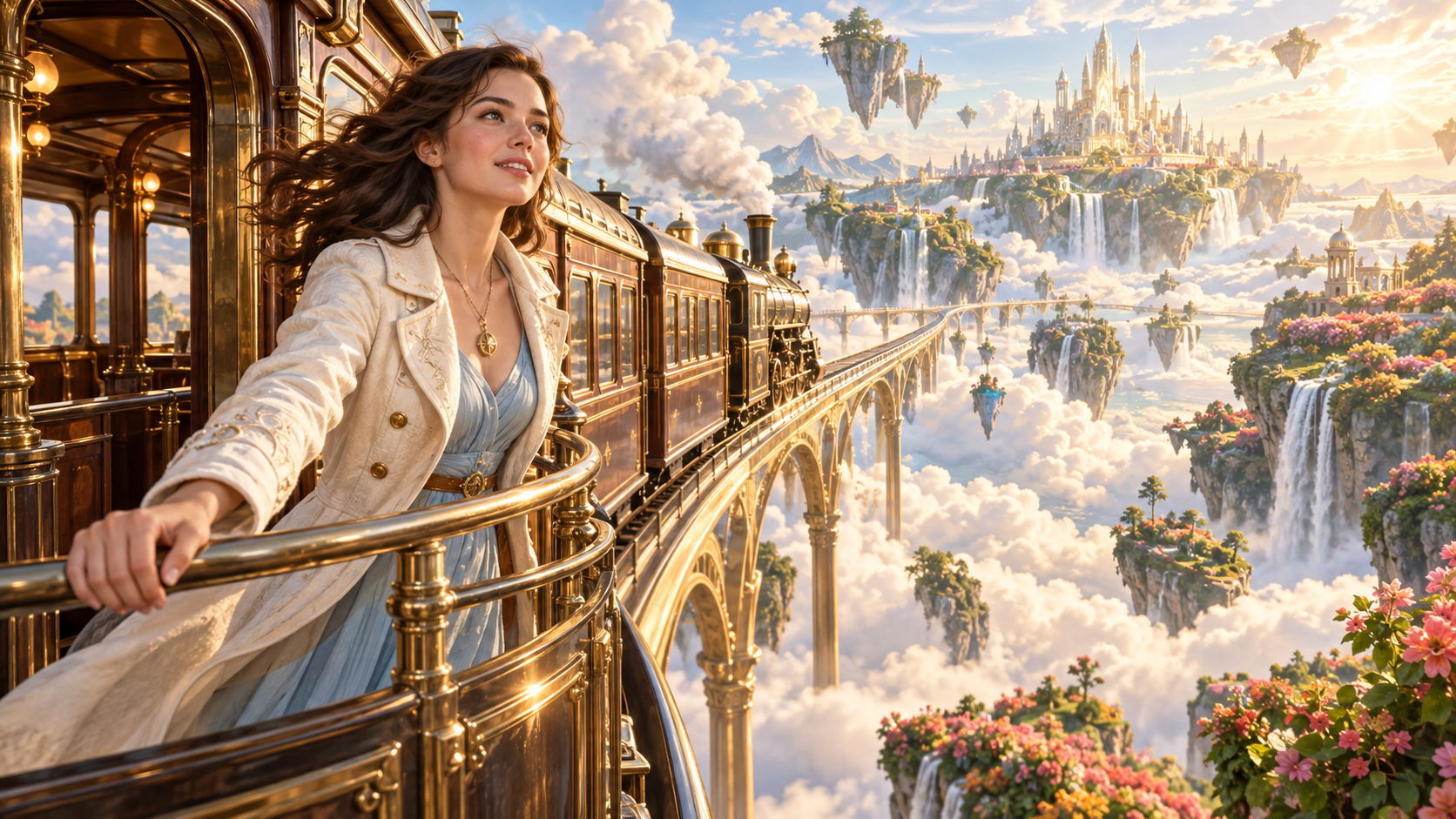
The Seedance 2.5 video editor turns an existing clip and a written edit instruction into a revised video. Instead of rebuilding a successful shot from scratch, you can identify what should change and what must stay consistent. This supports focused iterations such as replacing a character, updating a background, modifying an object, or refining a generated result.
Direct a focused revision while keeping successful content, movement, and creative decisions intact.
Swap a person or character while preserving the role, action, framing, and timing of the original performance.
Target one visible area or scene element and describe the change without asking the model to redesign the entire frame.
Revise lighting, color, atmosphere, material, or visual treatment while retaining the shot's core subject and motion.
Replace a prop, product, wardrobe detail, sign-free environment, or background with a clearly described alternative.
Keep a successful performance, transition, camera move, or rhythm while changing only the visual element that needs revision.
Use a previous output as the source, correct the weakest detail, and continue refining without rewriting the whole concept.
Move from an existing clip to a focused, reviewable revision with a clear change-and-preserve brief.
Choose the clip or generated result you want to revise and confirm that the important subject and action are clearly visible.
Describe what should be replaced, removed, restyled, or adjusted, including where and when the change should appear.
List the faces, wardrobe, objects, motion, camera behavior, timing, audio, and composition that should remain unchanged.
Inspect continuity around the edited area, then revise one instruction at a time until the new result matches your intent.
Apply targeted AI video edits to production, campaign, story, and social workflows without restarting every shot.
Replace a character or performer while preserving the action, shot timing, camera movement, and surrounding scene.
Create alternate product, color, material, packaging, or setting versions from an approved campaign clip.
Change a background, weather condition, prop, or story detail while keeping the original performance and framing.
Explore a new lighting scheme, palette, atmosphere, or original visual language without rebuilding the motion plan.
Adapt a strong clip for a new campaign concept, audience, or seasonal direction with focused visual changes.
Repair an object, face detail, environment, or continuity issue in an AI-generated result and keep the successful moments.
Practical answers about source clips, edit prompts, regional changes, character replacement, continuity, and output review.
Upload your source clip, describe the exact change, and state what must remain unchanged. Generate the revision, check the edited region and its surrounding frames, then refine the instruction if needed.
Yes. Identify the character to replace, describe the new character clearly, and specify which performance, camera, timing, wardrobe, or scene details should be preserved. Review identity and motion consistency across the full result.
Regional editing focuses the instruction on a particular subject or visible area, such as a face, object, outfit, foreground element, or background, while protecting the rest of the clip.
Yes. Use the generated result as the source clip, describe the single issue you want to correct, and explicitly preserve the parts of the output that already match your intent.
Use a change-and-preserve structure: name the target, state the replacement or revision, locate it in the shot, and list the identity, motion, camera, timing, audio, and style details to keep.
AI-edited results can vary. Give precise preservation instructions and review faces, hands, objects, edges, motion, lighting, audio, and the frames before and after the edited region before publishing.
Bring in an existing clip, describe one focused change, and preserve the motion, composition, and creative details that already work.